
Frequently Asked Questions
Having trouble installing or using Tabbit Browser? Find step-by-step solutions here.
macOS · Installation
Question: When I double-click the Tabbit app in /Applications, a dialog appears saying it "can't be opened because it was not downloaded from the App Store"
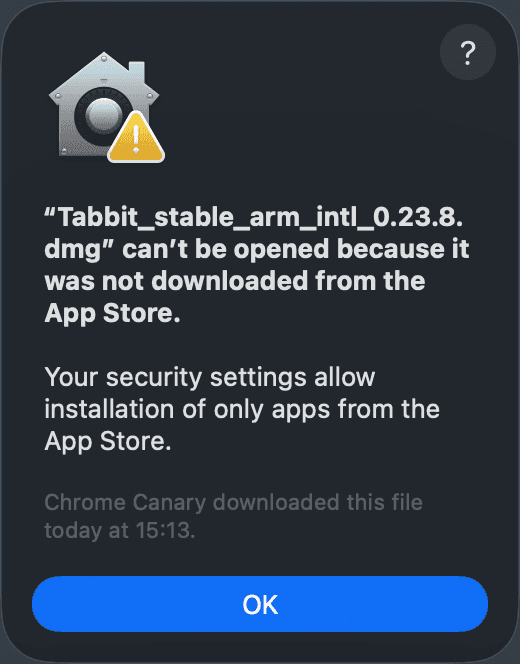
The macOS security dialog you may encounter
⚠️ This dialog is shown by macOS Gatekeeper, a built-in security feature. Tabbit Browser is a properly signed application and is safe to open. Follow the steps below to proceed.
How to fix it
- Click the "Apple menu" in the top-left corner of your screen and choose "System Settings".
- In the sidebar, click "Privacy & Security" (scroll down if you don't see it).
- Scroll down to the "Security" section and set "Allow applications from" to "App Store & Known Developers".
- A message will appear saying Tabbit was blocked to protect your Mac. Click the "Open Anyway" button next to it.
- In the confirmation dialog, click "Open Anyway" again. Enter your login password when prompted, and Tabbit will open successfully.
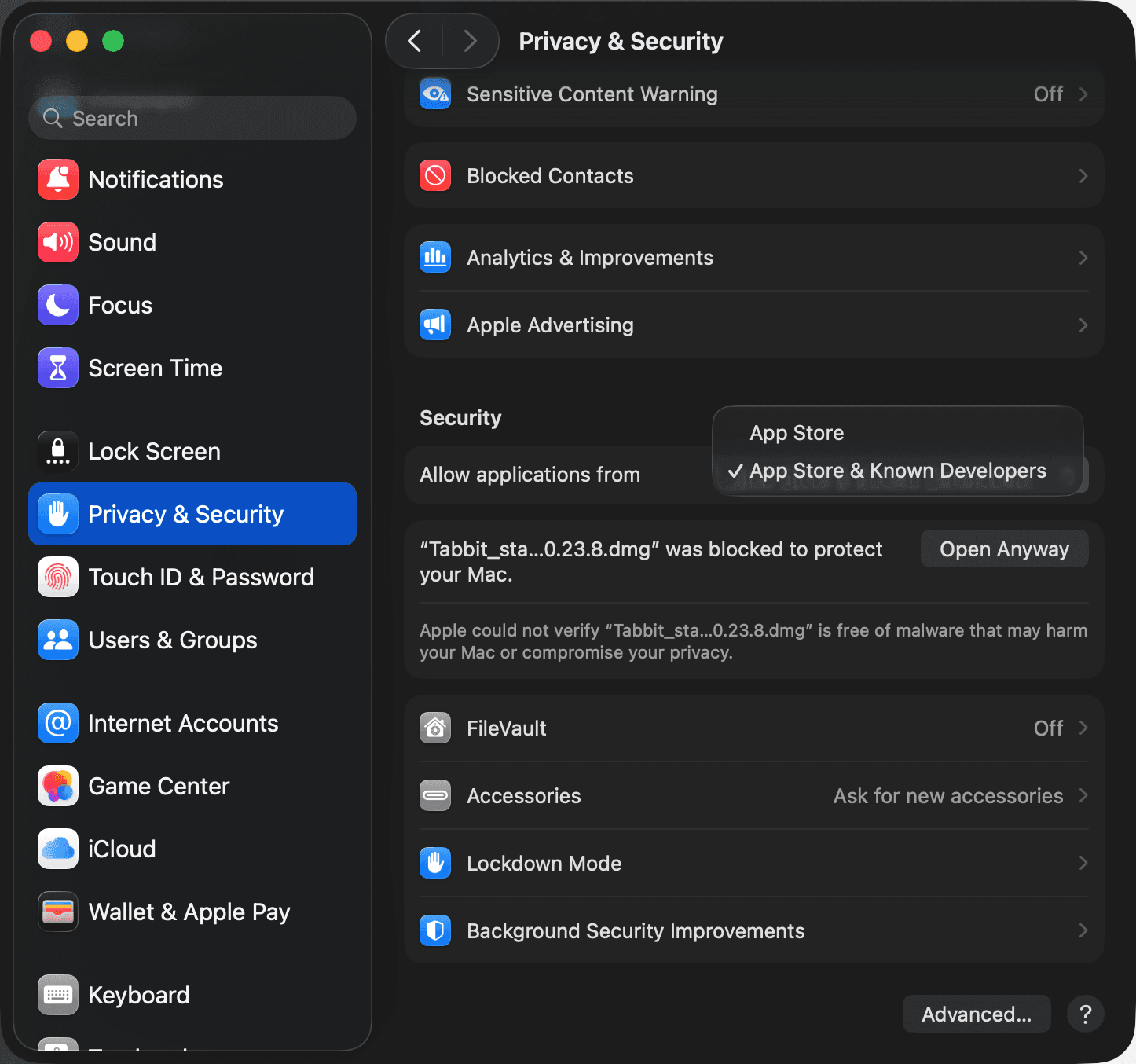
Locate the "Open Anyway" button in Privacy & Security settings
🔗 For more details, see the official Apple guide: Open a Mac app from an unknown developer — Apple Support