
In the age of AI-assisted work, everyone talks about workflows. But what does building one actually mean? How do you break a vague goal into concrete steps, decide which ones suit AI, and keep finding and fixing problems as the workflow runs?
Using forum-request triage as an example, wbhelper66 shows how to package a prompt into a Skill—a reusable AI tool in Tabbit. The article follows the full process from identifying a problem and building the Skill to testing, reviewing, and improving it, showing how prompts and constraints evolve through repeated use.
This is a practical, detailed exercise: break down a problem, try handing parts of it to AI, and adjust the approach based on what actually happens, rather than simply expecting a single sentence to automate everything.

How it started: a week on the forum
Recently I posted on the Appinn forum offering to write small scripts for free: tell me what you need, and I will build it. The post took off—not viral, but enough to get more than a dozen replies overnight, each deserving a careful read.
After a few days, I noticed a time-consuming task: triaging every request. Sometimes an existing app already had the feature. Sometimes no answer could be found anywhere. Other requests seemed novel but unlikely to be useful even if built. Deciding whether a request deserved my time took more thought than writing the script.
Surely this was a job for AI? But general-purpose chat has a weakness: ask whether a request is worth building, and it either gives you a lot of correct but useless advice or enthusiastically calls it a great idea.
I needed a diagnosis in a fixed format: dozens each day, each readable in ten seconds.
Tabbit's Skills do exactly that. Save a carefully tuned prompt as a reusable tool, then call it up with a slash in the input box.

Figure 1: Tabbit's new tab page, with entries for Skills and chat

Build a tool in five minutes: the Forum Request Triage Assistant
Creation is remarkably simple. On a new tab, choose Skills → Manage and Create Skills at the top right, click Create Skill, select Prompt Skill, enter a name, paste the prompt, and save. Three steps.
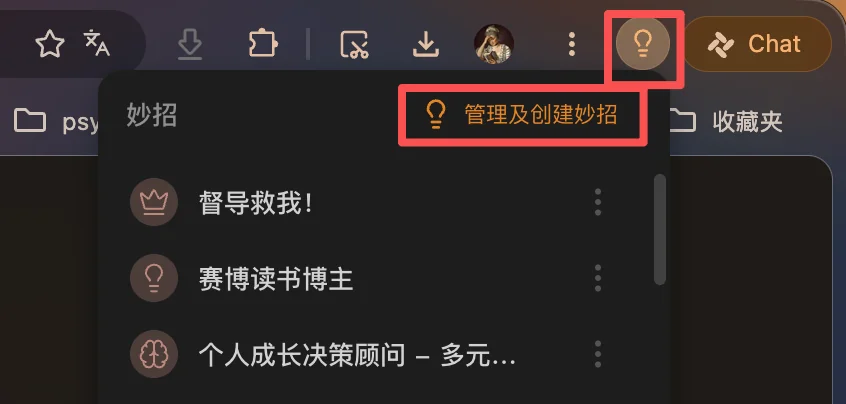

Figure 2: The Skill management page and Create Skill entry
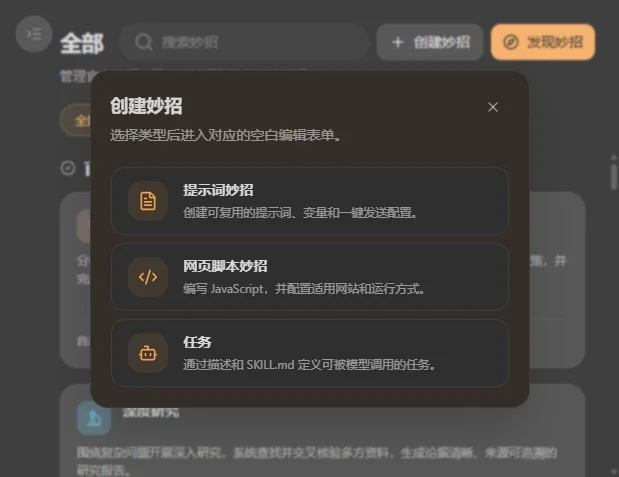
Figure 3: Choosing the Prompt Skill type
The key is how you write the prompt.
My advice is to fix the output format instead of letting AI improvise. Here is my original prompt, ready to copy:
You are a request-triage assistant for a software forum. I will provide the original text of a user's help request. Respond strictly in these four sections:
1. [Core need] Summarize in one sentence the problem the user truly wants to solve. Do not simply restate the post.
2. [Existing solutions] List common ready-made solutions, each with a software name and a one-sentence explanation, ordered by prevalence. Mark uncertain options as “Needs verification.” Never invent software names.
3. [Gap assessment] Decide whether existing solutions leave an unmet need: Yes / Partly / No. Explain your reasoning in two sentences.
4. [Suggested reply] Write a natural forum reply of no more than 50 Chinese characters. If the assessment is No, prioritize recommending an existing solution over building something new.
Constraints: respond entirely in Chinese; omit greetings and other material unrelated to triage.
Two details are worth explaining.
First, explicitly forbid invented software names and require uncertain options to be marked “Needs verification.” Otherwise, AI may helpfully recommend software that does not exist.
Second, “If No, recommend an existing solution first” embeds my own preference in the tool. For most requests, suggesting an existing app is kinder than asking someone to install Python.
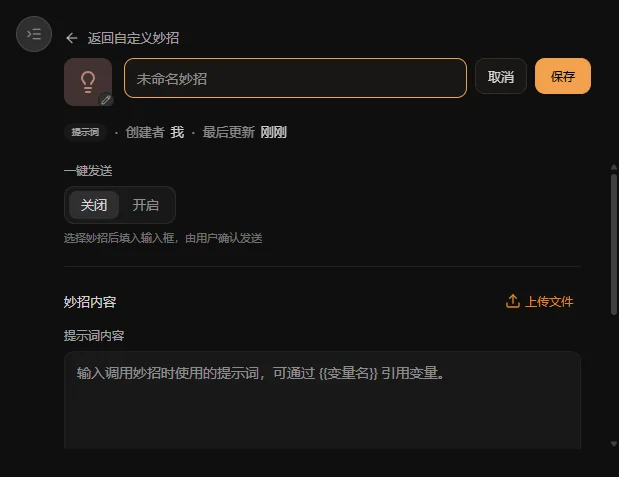
Figure 4: The Prompt Skill editing form
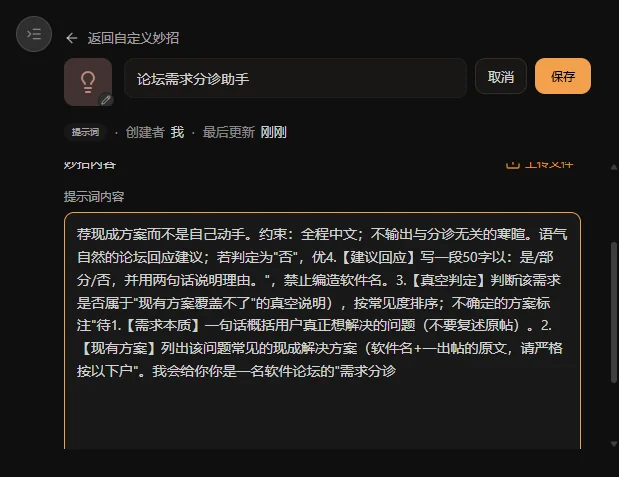
Figure 5: Name and prompt entered

Figure 6: The saved Skill's detail page

Testing it on three real posts
Real cases show whether a tool works. I picked three actual requests from the forum.
Figure 7: Typing “/” in the input box to open Skills
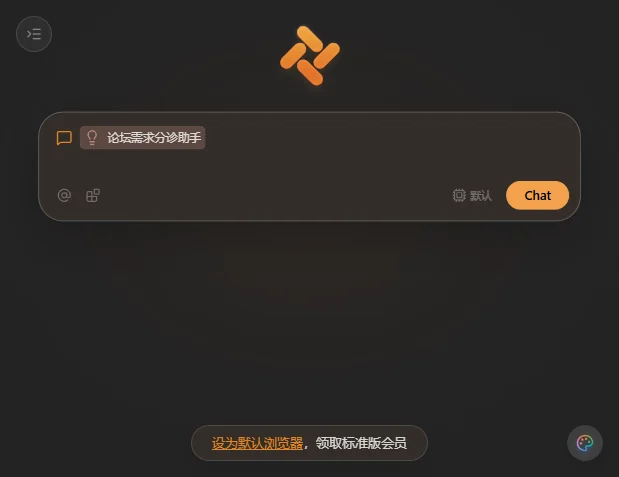
Figure 8: Selecting the Forum Request Triage Assistant
Request one:
Batch-export images from Word documents.
The assistant's first existing solution was the file-extension trick: rename .docx to .zip, extract it, and find the images in the media folder.
Assessment: Partly—an existing workaround works, but the experience has gaps.
Full marks for that judgment. A solution exists, but it is not especially convenient.

Figure 9: Test one, batch-exporting Word images—assessed as a partial gap
Request two:
Mac alternatives to PingInfoView and NetSetMan.
It listed nine options at once, including gping, fping, SmokePing, PingPlotter, and IPChange. Every uncertain option was marked “Needs verification,” with no invented software names.
Assessment: Partly.
Previously I would have opened five or six search pages and checked slowly. This time, I had a list in ten seconds and only needed to verify it.
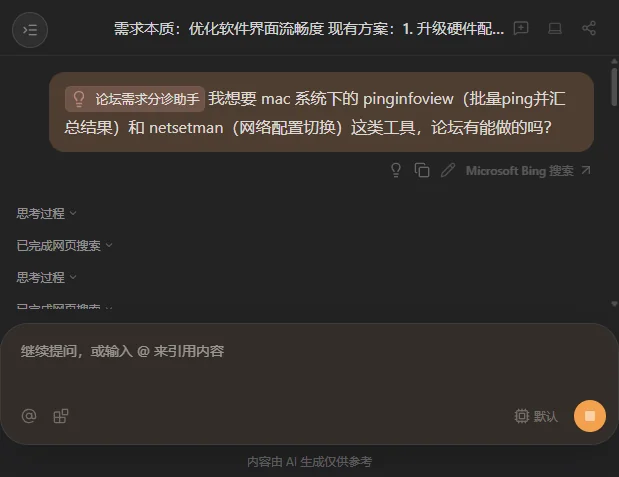
Figure 10: Test two, Mac network-tool alternatives—nine existing options with uncertain items marked for verification
Request three:
FreeFileSync becomes painfully slow when syncing .git folders.
This one was interesting. The assistant's answer was No.
Its reason: FreeFileSync already has filters. Exclude the .git directory and there is no need to build anything.
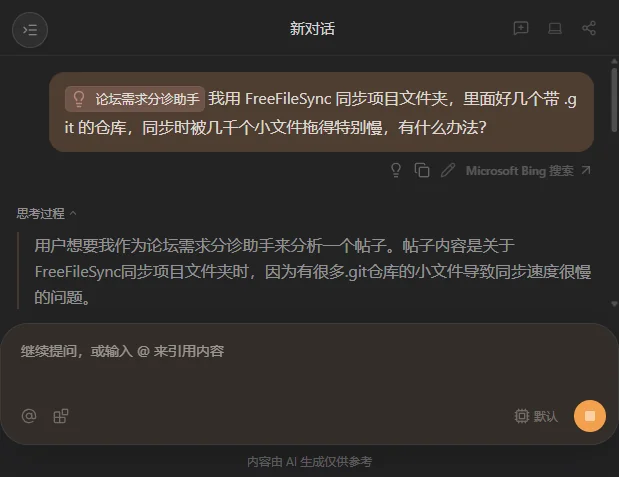
Figure 11: Test three, syncing .git with FreeFileSync—the AI says No

But reality offered the AI a gentle counterexample
The third judgment was theoretically airtight. In practice, it was wrong in an interesting way.
The request came from a forum user I had helped that week. They had already tried filtering, and it did not solve their problem. They did not want to skip .git during syncing; they wanted to back it up without slowing everything down.
Excluding it did speed up syncing, but sacrificed the very backup they wanted. I later packed the .git folder into a single archive before syncing it. The user replied that the script worked really well.
The assistant judged No based on the existence of an alternative, while the real user answered Yes by successfully using the script.
This clarified what “gap assessment” should mean in my prompt:
A gap is not simply something nobody has built. It can be an existing solution that changes the user's workflow or intent.
The exclusion rule was technically perfect but required abandoning part of the backup. That was amputation, not a cure. I added a clause to the assistant's criteria:
If an existing solution requires the user to give up part of the original goal, still assess the gap as Partly or Yes.
This process itself shows the value of Skills. Use one, notice where its criteria collide with reality, and change a line of the prompt. The tool evolves and becomes a better fit through use.

Figure 12: Skill details after revising the assessment criteria

Two convenient extra features
First: One-tap Send.
Skills have a One-tap Send toggle. Enable it, select text in a forum post, then invoke and choose the Skill with a slash. It starts immediately without another confirmation. I keep it on because I use the tool frequently.

Figure 13: Enable One-tap Send to use selected text
Second: browse the Skill Marketplace to see how others build their Skills.
There are three types: prompts, webpage scripts, and tasks. Popular prompt Skills have seven or eight thousand installs, and their descriptions follow a similar structure: a question about the pain point, a solution, and suitable use cases. I followed that pattern for my triage assistant.

Figure 14: How popular Skills describe themselves in the marketplace

My forum routine today
Each morning, I scan new posts and feed them to the assistant one by one. Ten seconds per diagnosis.
For No, I use the suggested reply to recommend an existing solution. For Partly, I judge the size of the gap before deciding whether to build. Yes is where I should focus my work.
Three real tests produced two Partly results and one No. Yet that No contained my most successful delivery of the week. When analyzing requirements, should we trust the checklist or the person?
I use this Skill every day. It has not reduced the amount of code I write, but it has helped me avoid three mistakes: rebuilding things that already exist, wasting an evening on a false need, and forgetting to ask users what they want to preserve.
The forum interactions described here are real events from September 2026 on the Appinn forum. A forum-migration issue temporarily prevents linking to kat's original request, which is faithfully paraphrased. All 21 screenshots show real operations.
If you have not tried Tabbit, visit www.tabbit.com or follow the original article link to download the desktop app for free.
Search for Tabbit in your app store to try the mobile app. Sign in to the same account to sync bookmarks, tabs, and other browsing data through the cloud.