
As a first-year university student, I want to share my real experience using Tabbit Browser to search for learning materials. From not knowing how to search to putting search, reading, and organization into one workflow, Tabbit’s AI features have genuinely improved how I study.
I often faced narrow search channels and did not know how to use search engines effectively. Traditional search methods all had limits.
Traditional search engines require constant filtering and are easily interrupted by commercial content. Some AI search tools can quickly generate answers and handle images, sources, and academic references well, but they still feel like one-off Q&A tools and do not connect naturally with the pages, papers, or tabs I am already reading.
For me, Tabbit is valuable not just because it can answer a question, but because it puts search, page reading, source tracing, and follow-up organization in the same browser environment.

Solving questions in context: search and reading connect seamlessly
I study mechanical engineering. When I first encountered the concept of a Mecanum wheel, I compared several AI search tools by asking Tabbit and two other AI products the same query.
Compared with other products, Tabbit’s ordinary answer view is not flashy and does not yet insert images into answers, but it has clear advantages:
1. I can open the sidebar and ask questions at any time while browsing, which is more convenient and immediate.
2. I can ask with a specified prompt in one click through Skills, which I will explain later, and the answer quality improves a lot.
For a single ordinary search, Tabbit may not always look the most impressive. What really attracts me is that it is first and foremost a browser, closer to the way I actually research.
I can open pages from search results, verify sources, or @ papers and material tabs I already opened into the question and continue asking whether a paper focuses more on structural design, motion control, or application scenarios for Mecanum wheels.

On that basis, Skills further turn this learning process into a reusable workflow. I can save recurring needs such as concept definitions, structural principles, use cases, pros and cons, and further reading as a fixed prompt.
I have optimized that prompt into a Skill and published it to the marketplace. Open the shared link in Tabbit to add it in one click: https://web.tabbit-ai.com/share/skill/JZHv4vVUmW. When I meet an unfamiliar technical concept in a paper, I can select it, run the Skill, and enter my preferred systematic learning flow immediately.
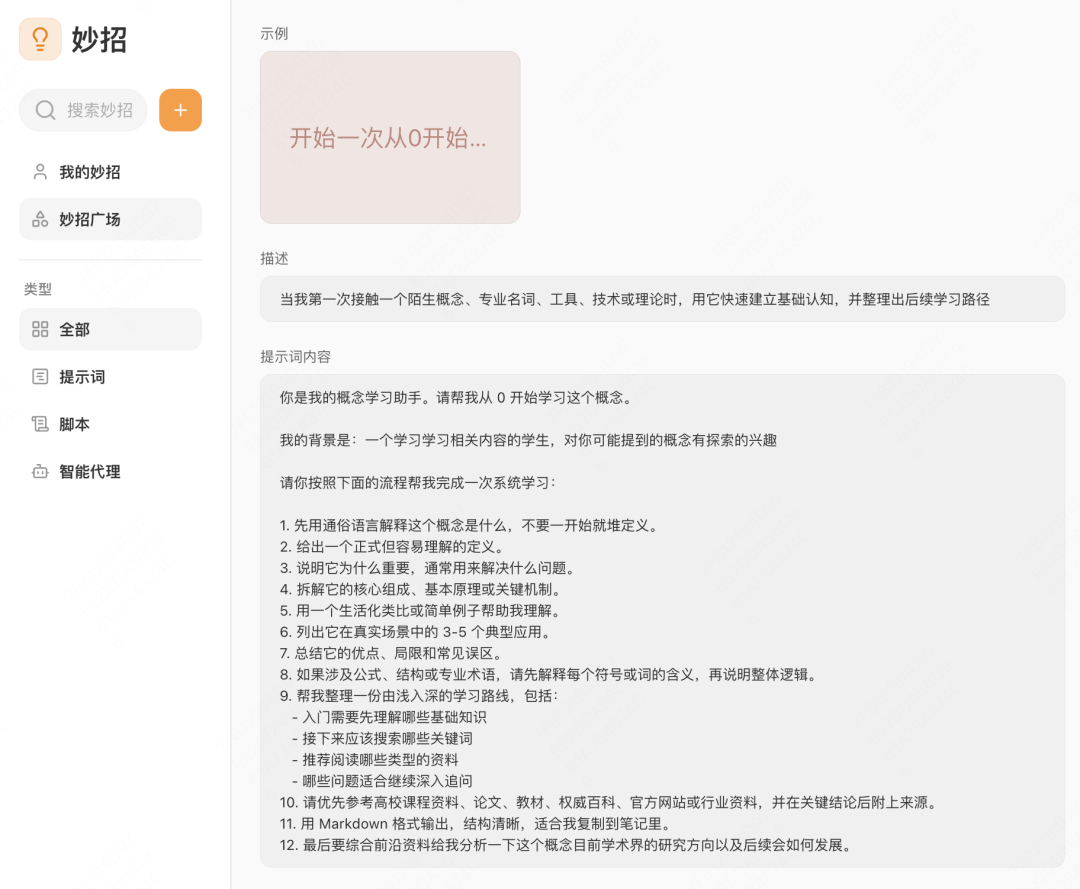
This is one of Tabbit’s strengths. With the Skill marketplace, I can share my own Skills with people who have similar needs and reuse high-quality prompts from others. The ecosystem is more open.
Breaking search boundaries: let AI agents reach more resources
There are many learning resources that ordinary search engines struggle to reach. This is where Tabbit’s advantage as an AI browser becomes clearer.
Through the agent feature, I can let AI simulate real web browsing and visit sites that require login or have access limits, such as Xiaohongshu, university library databases, or CNKI papers.
Resources that were hard for ordinary search engines to access can now be handled by entering a need in the chat box. AI can enter the site, search, download, organize, and summarize, then I can return to the chat box after the tab task finishes to view the result.
For example, while preparing Challenge Cup materials, I needed to estimate product costs from a parts list. I only had to paste screenshots into the chat box and let the agent search Taobao, 1688, and other sites for similar parts, then return prices and links automatically, saving lots of repetitive searching. Skill link: https://web.tabbit-ai.com/share/skill/cLdYsixkHx
Deep multi-tab learning: automate information management
When I move into deep research mode, I often need many tabs open at once. Tabbit’s multi-tab management helps a lot here.
Vertical tabs are essential in this situation. The recent three-state vertical tab layout improves on ordinary vertical tabs.
On my laptop screen, collapsing the sidebar to icons only maximizes screen space without losing tab-switching efficiency. For someone who often opens many material pages, it noticeably reduces the burden of organizing tabs.
Traditional browser tab groups had no onboarding when I first used them, so it took time to learn basic operations. I also often ran into messy groups. With 10+ tabs open, manually dragging them into categories is time-consuming and tabs are easy to misplace when several groups exist.
Tabbit’s intelligent grouping needs little learning. It automatically groups pages by content with sensible granularity: not so fine that tabs become scattered, not so broad that different topics are mixed, and it can name tab groups automatically.
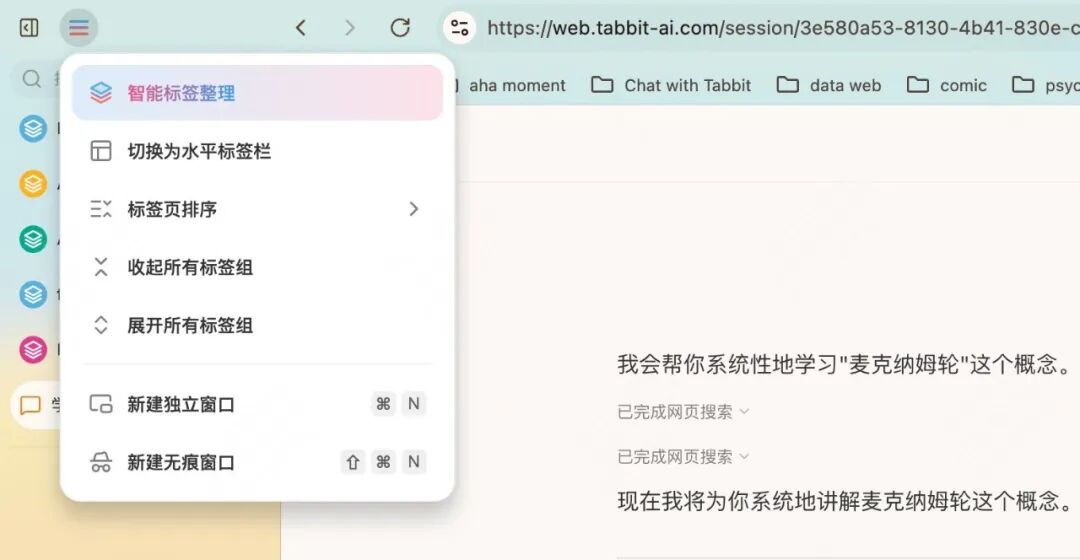
Especially when I enable the agent feature, Tabbit automatically creates a task group so agent tasks and daily browsing tabs are naturally separated and easier to review later.
Use scripts to clear page pop-ups: keep the learning thread uninterrupted
Another feature that impressed me is scripting in Tabbit Browser.
Similar capabilities are common in browser extensions, but Tabbit builds them into the browser and supports generating scripts directly from natural-language requests in the chat box.
For example, course videos in my mechanical drawing workbook required login. I only had to type “help me close this login pop-up” in the chat box, wait for the script to run, and refresh the page. The pop-up no longer appeared, and I could even set the script to run by default when opening the site.
For me, this shows that AI in the browser is not only for answering questions; it can also remove concrete obstacles on web pages.
The prompt feature, agent, and scripts mentioned above are all integrated under Tabbit’s signature Skill feature.
Any process worth saving, such as a prompt, an agent task, or a script needed on a certain website, can become a Skill and be invoked in one click next time instead of being set up repeatedly.
Because of Skills, I can turn concept learning, source checking, page organization, and repetitive operations into my own learning workflow instead of starting from scratch every time.
PDFs join the learning workspace: paper reading is no longer isolated
This reusable workflow also works in PDF reading.
Because Tabbit is based on Chromium, it can open PDFs such as papers, reports, and manuals directly. Once opened, a PDF is no longer isolated in a separate reader; it can be processed together with pages, tabs, sidebar questions, and Skills in one browser workflow.
When reading papers or course materials, I can continue using the same method of selecting concepts, invoking Skills, checking sources, and organizing tabs, making reading and material management more coherent.
Ask questions about a PDF directly in the browser and turn the paper into an infographic.
In the past, AI tools often felt scattered to me: some were good for chatting, some for searching, and some for organizing, but they were usually separate from real web browsing.
Tabbit Browser starts from a chat box, but it does not stop there. It connects search, understanding, verification, organization, and reuse into a complete flow.
Before, researching an unfamiliar concept meant jumping between search engines, AI tools, and web pages. Now I can first build understanding with AI search, verify it with web sources, organize materials with tab groups, and finally save a mature process as a Skill. For a freshman who is still learning how to do systematic research, this workflow saves many detours.
▲
The above comes from a real submission by Tabbit user @Secret. From learning unfamiliar concepts to finding cross-platform resources and managing many tabs, he shows through concrete scenarios how Tabbit can become a personal learning workspace.
If you have also used Tabbit Skills to solve real problems, or made practical and interesting Skills you want to share, we welcome your submission. Share your experience and thinking with us. We look forward to more real use cases and creative workflows.
For submission methods and requirements, see: Tabbit Call for Submissions
If you have not tried Tabbit yet, visit www.tabbit.ai or tap “Read Original” to go to the official site and download it for free.